


BIGVU Teleprompter & Captions
4.51.32K Reviews
App Specs
- Version
- 2.90.0
- Updated On
- License
- Free
- Downloads
- 5,000,000+
- Developer
- BIGVU AI Eye Contact & Video Subtitles
- Categories
- Video Players & Editors
- Platform
- Android, iOS
Screenshots
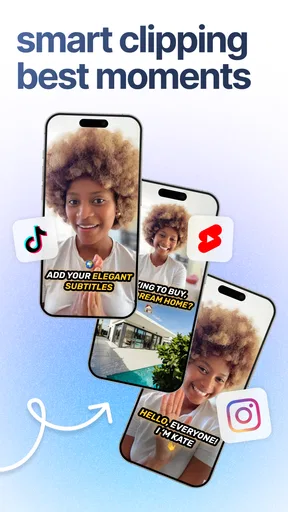
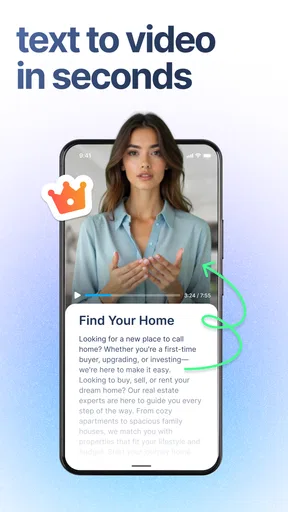


 Analysis by AppCompare
For anyone who records a short video on a phone, the hardest part is often not pressing the record button; it is keeping a thought clear while watching the camera. That is the problem I’d use BIGVU Teleprompter & Captions to solve. It is a video-making app from BIGVU AI Eye Contact & Video Subtitles, built around reading a script while recording and then preparing the result with editing tools. In my experience, that combination is most useful when I have something specific to say and limited time to repeat takes.
When a good connection matters
A teleprompter and recording workflow can feel simple, but an app that also offers captions, visual treatments, music and AI-assisted tools has more to manage than a basic camera. BIGVU’s current app summary points to a broad editing toolkit, so I would plan any connected steps—such as using online-assisted tools or moving a finished video between services—when I have a dependable connection. I would not make a last-minute recording depend on a feature I have not tested on my own network.
That distinction matters for a practical reason: a recording session and the finishing work are different jobs. I can prepare a script and rehearse the delivery before I start, then leave caption review and visual polish until I have time to check them carefully. If the connection is unreliable, I would avoid building a deadline around an assumption that every editing or account-related action will work immediately. The app is more reassuring as a way to organize a video workflow than as a promise that every step is independent of connectivity.
Why this setup suits phone-first recording
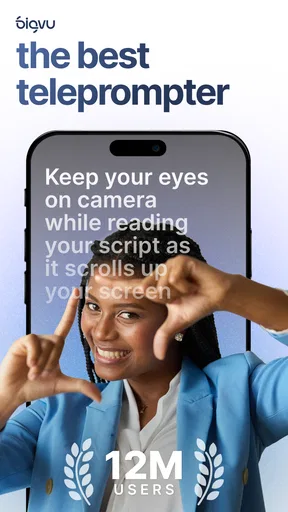
The core teleprompter idea is especially handy on a phone because the device already handles the camera, script and basic review in one place. I like this approach for a short introduction, a product explanation, a class update or a message to a group: I can keep the wording nearby without trying to memorize every line. The adjustable scroll speed is useful, but I would still rehearse once before recording. A script that looks comfortable on screen can feel too dense when spoken aloud.
One small workflow tip is to write for speech rather than for reading. I break long sentences into shorter thoughts and place a pause where I naturally need to breathe. That makes the scrolling text easier to follow and leaves less editing to do later. I would also keep the phone stable and check the framing before a full take; a teleprompter can help with delivery, but it cannot make an awkward camera angle or distracting background disappear.
A realistic day-to-day use
Imagine I need to record a quick weekly update for colleagues before a busy morning gets underway. I would draft a few bullet points, turn them into conversational lines, and use the scrolling script to keep the update on track. After recording, I could review the take, check the automatically generated captions for names and technical terms, and decide whether a simple look is better than extra effects. That sequence is less stressful than trying to remember everything while also watching my own image.
The caption step deserves a deliberate review rather than a quick glance. Automatic transcription can misunderstand a name, acronym or word spoken quickly, and a mistake in a caption can change the meaning of an otherwise clear sentence. I would check captions with the audio playing, especially on a video intended for work, teaching or public information. This is one of the app’s most useful conveniences, but it works best as a first draft, not as a substitute for proofreading.
Worth Reading Before You Choose

EA SPORTS FC Mobile 26 Is a Bigger Football Game, but It Takes Time

Flipboard Shows What News Apps Must Do Beyond the Feed

Switching to Android Auto Means Rethinking Your Driving Routine

Google Calendar Makes a Crowded Week Easier to Manage

Ludo King Makes the Most of the Minutes Between Plans

Baby Panda World Brings Quick Play to Modern Phones, but Its Game Library Feels Busy
Where it sits among video tools
Compared with a plain camera app, BIGVU offers a more guided route from spoken script to edited video. Compared with a dedicated video editor, its teleprompter gives it a clear advantage for people who regularly speak to camera, while a specialist editor may be a better fit for detailed timelines, layered projects or precise cuts. I would choose based on the part of the job that causes the most friction: if I keep losing my place during recording, a teleprompter-led workflow is valuable; if I already record confidently and mainly need complex editing, another tool may feel more direct.
That focus also makes the app a better match for explainers, presenter-led updates and social clips than for every kind of video. Someone making a montage from lots of short clips may care more about arranging footage than reading a script. A person who records occasional spontaneous moments may be perfectly happy with the standard camera and a separate editing app. BIGVU is most compelling when speaking smoothly and preparing a presentable result are part of the same task.
Small choices that improve a take
I would treat the teleprompter speed as something to tune to the script, not as a setting to choose once and forget. For a section with unfamiliar wording, slower scrolling gives me room to stay composed; for a familiar line, a quicker pace can keep the delivery lively. If I stumble, I prefer to pause, reset my place and repeat a short section rather than push through a sentence that sounds unnatural. That approach also makes caption correction easier because the speech is clearer.
Visual customization can help establish a consistent look, but more decoration is not always better. I would select a readable text style and a restrained background for an instructional or professional video, then use music only when it supports the message rather than competing with speech. The app’s options for different aspect ratios are useful when I know where a clip will be shared, but I would settle the intended format before recording so that framing does not become an afterthought.
Who will get the most from it
I’d recommend trying it if you often record yourself explaining something, want help staying on script, or need captions as part of a repeatable phone-based workflow. Teachers, small-business owners, community organizers and camera-shy presenters may appreciate having the words visible while they speak. It can also suit someone making a series of similar clips, because a prepared script and consistent visual choices make it easier to keep each recording focused.
I would be more cautious if I only need a quick trim, rarely speak to camera, or want a full desktop-style editing environment. There is little benefit in learning a larger set of video tools when a simple camera and editor already cover the job. The app is free to download, though it offers in-app purchases ranging from $0.99 to $139.99 per item, so I would explore the features I actually need before paying for anything. The free starting point makes it approachable, but the range of paid items means it is sensible to check costs in the app before building a regular workflow around a particular extra.
What to expect from setup and upkeep
BIGVU is listed as a video players and editors app, and its audience reach suggests it is not a niche utility: it has over five million installs, with an average rating of 4.2 from around 61,000 ratings. Those figures are useful context, not a guarantee that the interface or results will suit every creator. The app is rated for everyone, and version 2.75.1 requires Android 8.0 or later. It first appeared on March 22, 2016, so it has been around long enough to become a familiar option in this space.
Before committing to a regular routine, I would make one short test video. That lets me check whether the script is comfortable to read on my screen, whether the scroll pace feels natural, and how much caption correction my speech style needs. It also exposes practical snags early: a room that is too noisy, a script with lines that are too long, or a frame that leaves little room for the presenter. A brief test is a better way to judge fit than assuming that a feature list will match the way I personally record.
Handling interruptions and reviewing work
For an important recording, I would separate preparation from the actual take. I’d save the script somewhere I can retrieve it, read it aloud once, and avoid waiting until the last minute to discover that a network-dependent step is taking longer than expected. If something interrupts the workflow, I would first check whether the recording itself is intact, then return to editing or caption review when I can focus. That simple order helps prevent a connection hiccup from turning into a rushed re-recording.
I would also keep the original take until I am satisfied with the finished version. Captions are easiest to correct while I can compare them with the spoken words, and a clean source gives me room to make a different edit later. When a video is important, reviewing it once with sound and once with captions in mind catches different problems: the first pass reveals pacing and audio issues, while the second catches text errors or distracting visual choices.
Costs, expectations and the right level of polish
The app’s range of tools can tempt me to polish every clip, but the goal should be clarity rather than using every option. For a simple announcement, readable captions and steady delivery may do more than a background or music track. For a more formal presentation, I would spend time checking the script, visual style and final captions. This keeps the workflow proportionate and avoids turning a quick update into an unnecessarily involved editing session.
It is also worth thinking about how often I will use the app. Someone recording several presenter-led videos may find the combination of prompting and editing convenient enough to justify exploring paid options. Someone making a clip every few months may be better off staying with the free features that meet the immediate need. I would decide only after a real test, not because a tool sounds useful in theory; the best value comes from solving a recurring problem, not collecting options I never use.
For people concerned about connectivity, my practical advice is to prepare the parts you control and test the rest before a deadline. Drafting a concise script, choosing a format and rehearsing do not require elaborate editing decisions, while online-dependent actions should be checked under the conditions in which I plan to work. I would not assume that every feature behaves the same on a weak connection. Keeping expectations modest makes the app easier to use: record when ready, review the result, and leave time for the finishing steps that need a stable connection.
First Impressions and Setup
So, downloading the app was a breeze, and setting it up was pretty straightforward. The interface is clean, and it doesn’t take long to get the hang of it, even if you’re a newbie. Just pop in your script, and you’re ready to go. I appreciated how intuitive it was—I didn’t have to spend ages figuring out where everything was.
Features That Stand Out
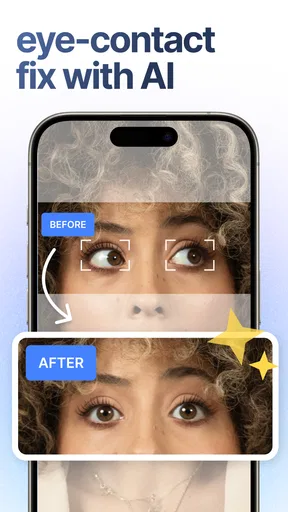
One of the coolest things about BIGVU Teleprompter & Captions is the teleprompter function. You can adjust the speed of the scrolling text, which is super handy if you’re like me and tend to talk faster than the average person. Plus, you can split the screen to see yourself while reading the script, making it feel like you’re looking directly into the camera.
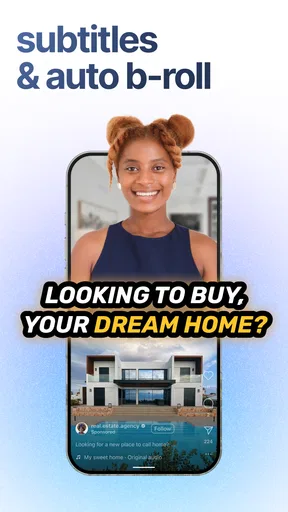
Then there's the automatic captions feature. It’s a lifesaver for anyone who wants to make their videos accessible or just more engaging. The app does a pretty decent job of generating captions, although you might need to tweak them a bit for accuracy. But hey, what’s a few edits compared to typing them all out manually?
Customization Galore
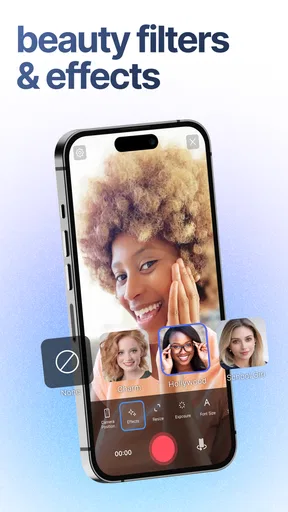
Customization is where BIGVU really shines. You can change the font, size, and color of your text, so it suits your brand or personal style. And if you’re someone who likes to add a bit of flair to your videos, there's an option to add music or a background. The app even lets you record in different aspect ratios, which is perfect if you’re planning to share your video on various platforms.
Performance and Usability
Now, onto the nitty-gritty—how does it perform? I found that the app runs smoothly without any major hiccups. The video quality is crisp, and there’s minimal lag, which is crucial when you’re trying to keep your presentation flowing naturally. It’s compatible with most devices, which is a huge plus if you switch between your phone and tablet like I do.
Community and Support
One thing worth mentioning is the community around the app. There are heaps of tutorials and support options available if you ever get stuck. The developers seem pretty responsive, which is always a good sign. It’s nice to know there’s a team ready to help you out if needed.
Wrapping It Up
All in all, BIGVU Teleprompter & Captions is a solid choice for anyone looking to up their video game without investing in a ton of equipment or software. Whether you’re a content creator, journalist, or just someone who likes making videos for fun, this app has something to offer. It’s user-friendly, packed with features, and flexible enough to suit a variety of needs.
If you’re on the fence about giving it a try, I’d say go for it. It’s rare to find an app that combines functionality and ease of use so seamlessly. So why not take it for a spin and see how it can transform your video creation experience?
Pros
- User-friendly interface for quick setup.
- High-quality video output options.
- Script import feature saves time.
- Built-in editor streamlines workflow.
- Cloud storage integration available.
Cons
- Limited free version features.
- Occasional app crashes reported.
- Subscription model may be pricey.
- Not available offline without download.
- Requires stable internet for best use.
FAQs for BIGVU Teleprompter & Captions
What is BIGVU Teleprompter & Captions used for?
BIGVU Teleprompter & Captions is designed for creating professional-looking videos with ease. It offers a teleprompter feature that allows users to read scripts while recording. Additionally, it provides tools for adding captions, editing videos, and sharing content directly on social media platforms, making it ideal for content creators and marketers.
Is BIGVU Teleprompter & Captions suitable for beginners?
Yes, BIGVU is user-friendly and suitable for beginners. It provides an intuitive interface with easy-to-follow instructions, so you can start creating videos without prior experience. The app also includes helpful tutorials and support, making it accessible for those new to video production.
Does BIGVU offer any customization features for videos?
BIGVU provides several customization options for your videos. Users can adjust the teleprompter's speed and text size, choose from various themes, add background music, and insert captions. The app also allows for easy trimming and editing, giving you control over the final look of your video.
Can I use BIGVU on both Android and iOS devices?
Yes, BIGVU Teleprompter & Captions is available on both Android and iOS platforms. It ensures a seamless experience across devices, allowing you to work on your projects from your smartphone or tablet. This cross-platform availability makes it convenient for users who switch between devices.
Are there any costs associated with using BIGVU?
BIGVU offers a free version with basic features, but there are premium plans available for users who want more advanced functionalities. These paid plans include additional features such as watermark removal, cloud storage, and access to premium themes. Users can choose a plan that best fits their needs and budget.


